Welcome to WordPress! You can build blog post and update pages using the Block Visual Editor. This is a paragraph block.
What is this page exactly? (Heading 2)
This page is a general guide to show you what the different headings look like on the website in one easy place. The block editor won’t show you how it looks on the front end of the website, so you’ll need to view the published page to view how it would look live.
Need templates? (Heading 2)
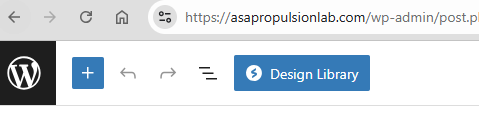
If you want to get fancy, you can click the blue “Design Library” button at the top for some templates.
Why use the design library? (Heading 3)
The design library makes it easier to add sections where you already have a general idea of what you want it to look like, without having to tinker around with page structure (which we’ll cover later 🙂 ).
The templates look good.
They’re easy to add to your site.
It’s free (for the most part!).
There are some that are “premium” but you should be able to do what you need with just the free options.
Page Hierarchy (Heading 2)
For the most part, these pages are built using “Container” blocks. These containers can group content together and even put them into columns. It’s even possible to nest containers for more control.
This is the first column of a 3 column Container block.
This is the second column. Side note – You can also bold or italicize any text you want using the text editor.
This is the third column.
Each column has the ability to have nested blocks. This is the 2nd block in the 3rd column.
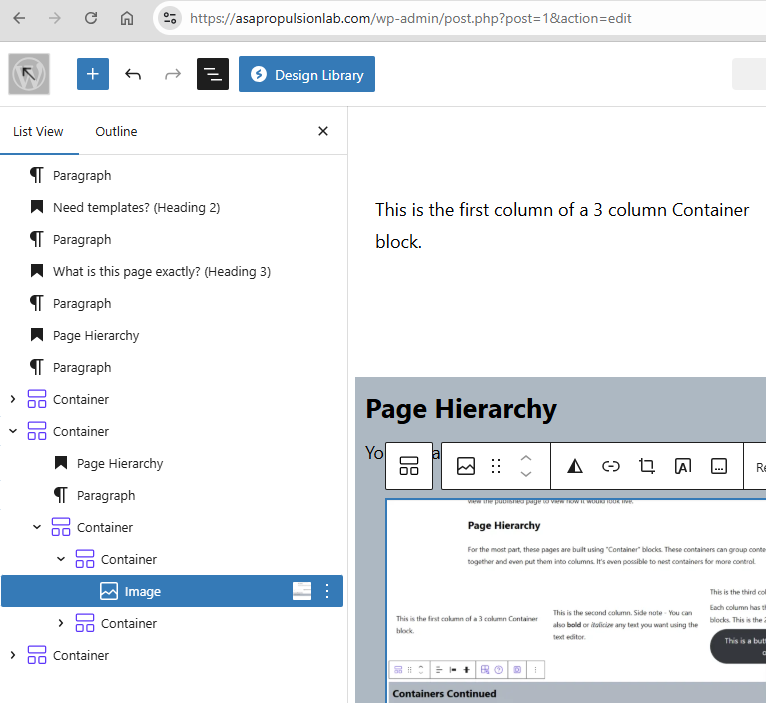
As you start creating containers it could get confusing trying to select the correct group of items on the page. Luckily there’s a simple way to see an outline of your page.
In the top menu, there should be an icon with 3 offsetting lines. Clicking that icon will open up the outline screen which will allow for greater control with adjusting your blocks.
Let’s talk styling! (Heading 2)
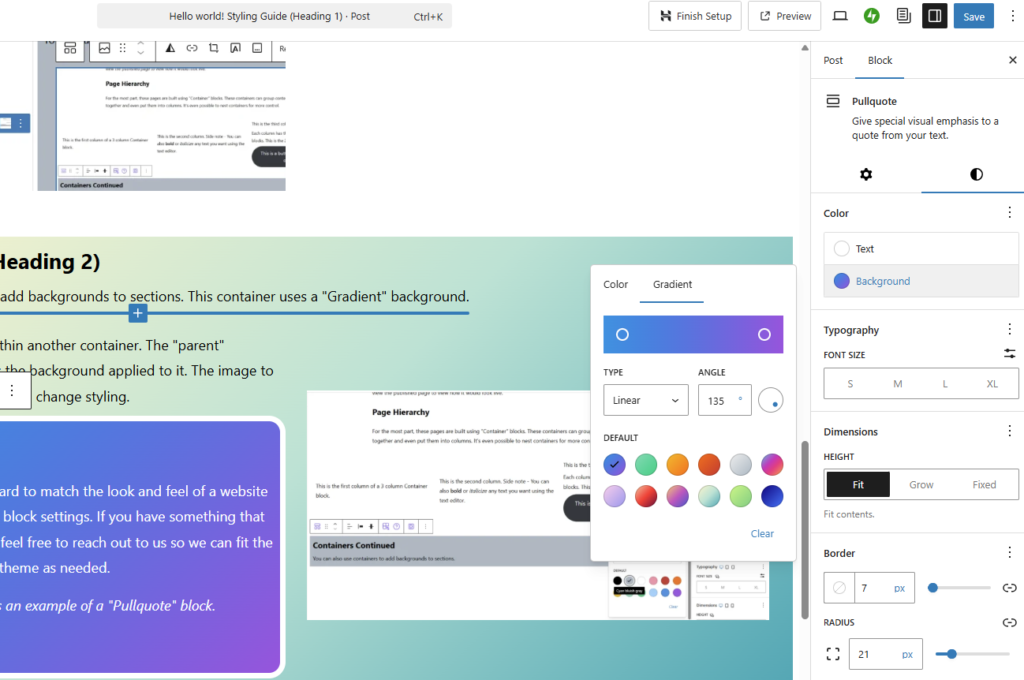
You can also use containers to add backgrounds to sections. This container uses a “Gradient” background.
This is a nested container within another container. The “parent” container is the one that has the background applied to it. The image to the left shows you where you can change styling.
Important – It could be hard to match the look and feel of a website using just the WordPress block settings. If you have something that requires a bit more polish feel free to reach out to us so we can fit the theme as needed.
By the way, this is an example of a “Pullquote” block.