Your WordPress website is built out into 3 post/page types. Portfolio, Posts, and Pages. Each serves its own purpose.
- Page
- These are your primary pages on your website. Pages like “About” and the main “Projects” page would be in this section.
- Portfolio
- The portfolio is where all your individual project pages live.
- Posts
- Your posts are your blog posts. Field Notes would be considered a blog post. The page you’re reading now is also a blog post.
Updating Content
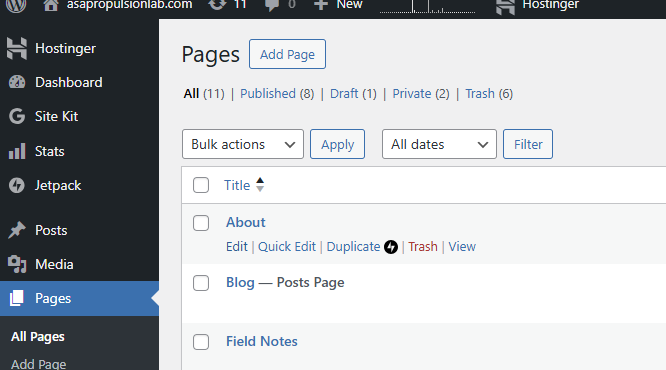
If you would like to update existing content, first go into the page type you’re looking for: Pages, Posts, or Portfolio. From there, select the page you what to update and either click on the Page Title or “Edit” while hovering over the page.
Updating Content and Images
The video below is a quick 480p (sorry! trying to save file space) on how to swap out your images or text on a given page.
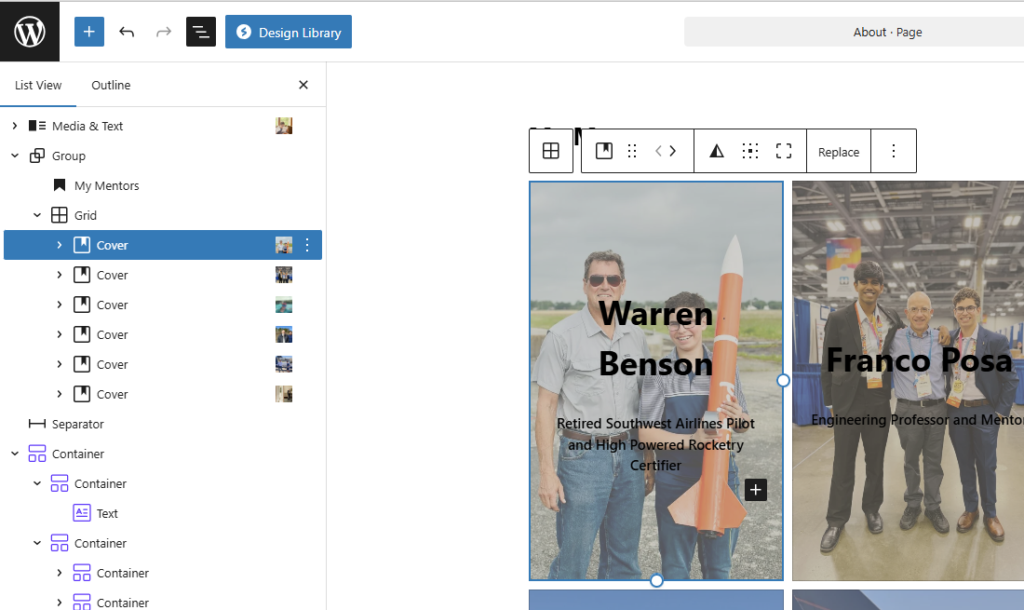
If you’re having trouble selecting the element you want to change, open up the Document Overview to display an outline of the page’s section. Selecting from either the item on the page preview or from the document overview will highlight the other so you know exactly what you selected.
Projects
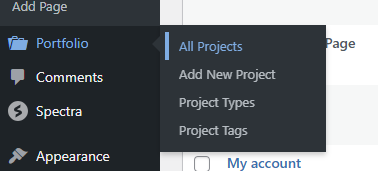
Your projects are in a separate section in WordPress called “Portfolio”. This is where your individual project pages live. From here you can add additional projects or edit existing ones.
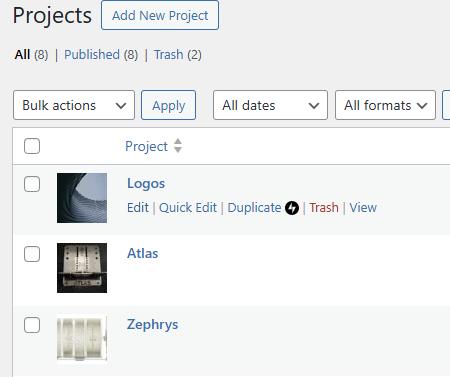
In the video below, I’ll show you how you would add a new project page from scratch. If you would like to update an existing page instead, you can use the same principles as the first video.
Posts
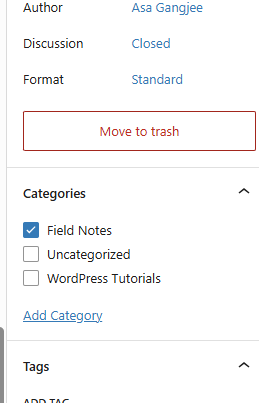
The posts section is essentially your WordPress blog. We utilize this page type for your Field Notes section. Posts are categorized by the content within. For example, this page you’re reading will be categorized “WordPress Tutorials”, and Field Notes should be within the Field Notes category.
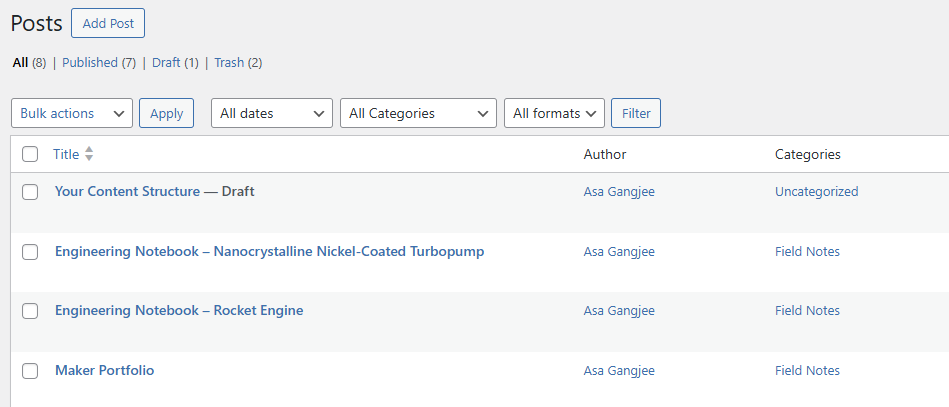
Adding and Updating Field Notes
Any post with in the Field Notes category will automatically be added to the Field Notes page. This also means that it will not show up on that page if a category is not set, so when adding a new Field Note be sure to set the category accordingly or else no one will see it! 🙂
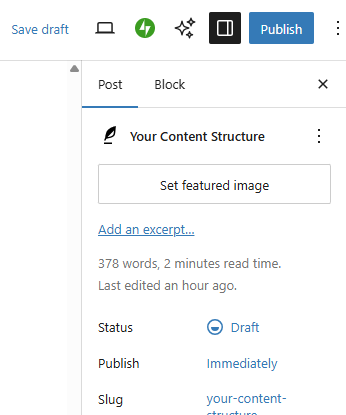
Make sure the image is cropped to be short and wide, or else the listing will be a lot taller than the other notes!